> ## Documentation Index
> Fetch the complete documentation index at: https://opentouter.ai/docs/llms.txt
> Use this file to discover all available pages before exploring further.
# OAuth PKCE
> Connect your users to OpenRouter
Users can connect to OpenRouter in one click using [Proof Key for Code Exchange (PKCE)](https://oauth.net/2/pkce/).
Here's a step-by-step guide:
## PKCE Guide
### Step 1: Send your user to OpenRouter
To start the PKCE flow, send your user to OpenRouter's `/auth` URL with a `callback_url` parameter pointing back to your site:
```txt title="With S256 Code Challenge (Recommended)" wrap lines theme={null}
https://openrouter.ai/auth?callback_url=&code_challenge=&code_challenge_method=S256
```
```txt title="With Plain Code Challenge" wrap lines theme={null}
https://openrouter.ai/auth?callback_url=&code_challenge=&code_challenge_method=plain
```
```txt title="Without Code Challenge" wrap lines theme={null}
https://openrouter.ai/auth?callback_url=
```
The `code_challenge` parameter is optional but recommended.
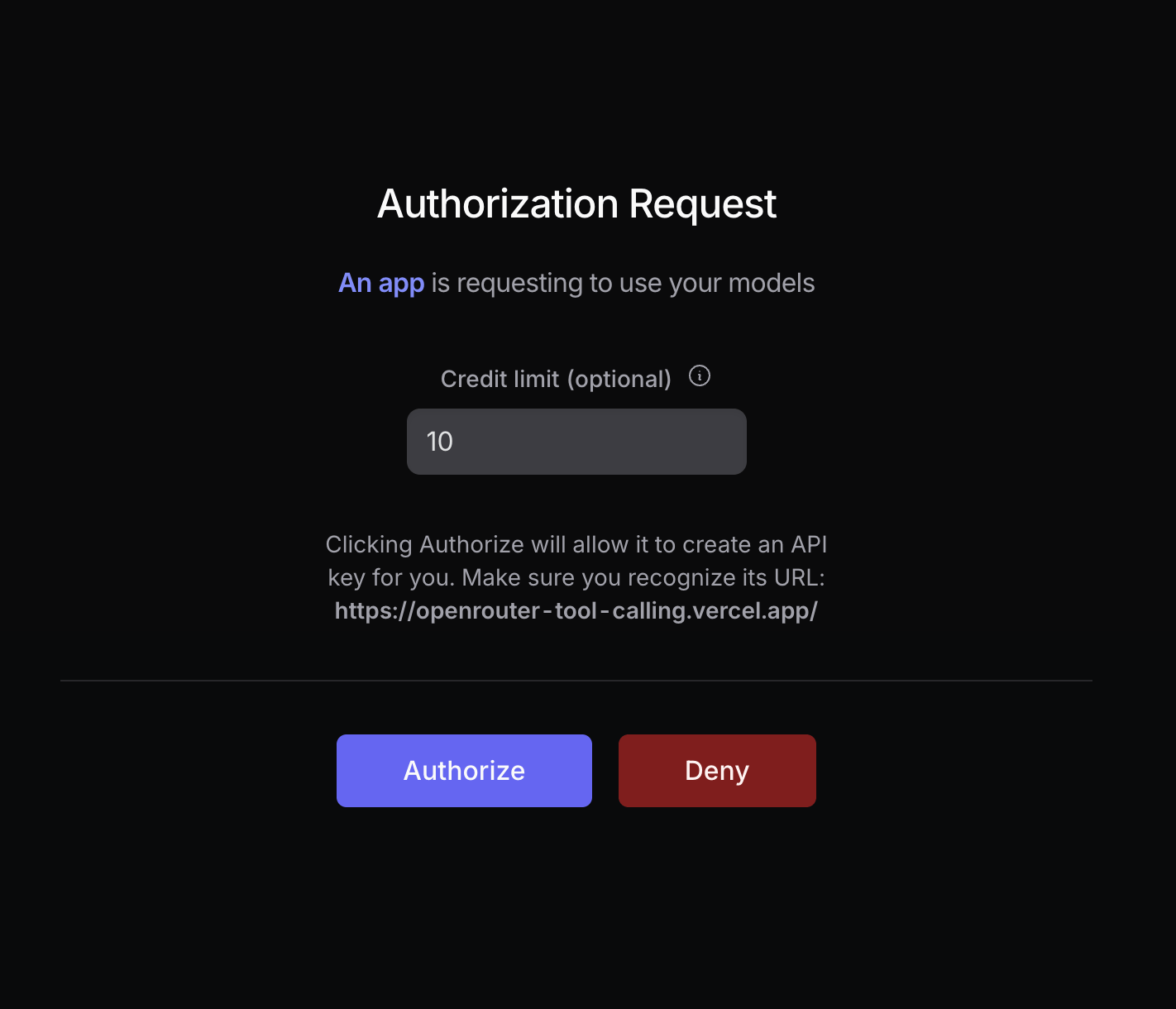
Your user will be prompted to log in to OpenRouter and authorize your app. After authorization, they will be redirected back to your site with a `code` parameter in the URL:
 **Use SHA-256 for Maximum Security**
For maximum security, set `code_challenge_method` to `S256`, and set `code_challenge` to the base64 encoding of the sha256 hash of `code_verifier`.
For more info, [visit Auth0's docs](https://auth0.com/docs/get-started/authentication-and-authorization-flow/call-your-api-using-the-authorization-code-flow-with-pkce#parameters).
#### How to Generate a Code Challenge
The following example leverages the Web Crypto API and the Buffer API to generate a code challenge for the S256 method. You will need a bundler to use the Buffer API in the web browser:
```typescript title="Generate Code Challenge" lines theme={null}
import { Buffer } from 'buffer';
async function createSHA256CodeChallenge(input: string) {
const encoder = new TextEncoder();
const data = encoder.encode(input);
const hash = await crypto.subtle.digest('SHA-256', data);
return Buffer.from(hash).toString('base64url');
}
const codeVerifier = 'your-random-string';
const generatedCodeChallenge = await createSHA256CodeChallenge(codeVerifier);
```
#### Localhost Apps
Localhost callbacks are supported on **any port**. This is useful for CLI tools and local-first apps that bind to an arbitrary free OS port for the OAuth callback (e.g. `http://localhost:51423/callback`).
Localhost apps are assigned a fixed title matching the host and port (e.g. `localhost:3000`) but will not appear in the OpenRouter marketplace or rankings. If you want a custom app name and marketplace presence, use a public URL as the callback instead.
When moving to production, replace the localhost callback URL with a public URL (your project website or a GitHub repo link) to get full app attribution.
### Step 2: Exchange the code for a user-controlled API key
After the user logs in with OpenRouter, they are redirected back to your site with a `code` parameter in the URL:
**Use SHA-256 for Maximum Security**
For maximum security, set `code_challenge_method` to `S256`, and set `code_challenge` to the base64 encoding of the sha256 hash of `code_verifier`.
For more info, [visit Auth0's docs](https://auth0.com/docs/get-started/authentication-and-authorization-flow/call-your-api-using-the-authorization-code-flow-with-pkce#parameters).
#### How to Generate a Code Challenge
The following example leverages the Web Crypto API and the Buffer API to generate a code challenge for the S256 method. You will need a bundler to use the Buffer API in the web browser:
```typescript title="Generate Code Challenge" lines theme={null}
import { Buffer } from 'buffer';
async function createSHA256CodeChallenge(input: string) {
const encoder = new TextEncoder();
const data = encoder.encode(input);
const hash = await crypto.subtle.digest('SHA-256', data);
return Buffer.from(hash).toString('base64url');
}
const codeVerifier = 'your-random-string';
const generatedCodeChallenge = await createSHA256CodeChallenge(codeVerifier);
```
#### Localhost Apps
Localhost callbacks are supported on **any port**. This is useful for CLI tools and local-first apps that bind to an arbitrary free OS port for the OAuth callback (e.g. `http://localhost:51423/callback`).
Localhost apps are assigned a fixed title matching the host and port (e.g. `localhost:3000`) but will not appear in the OpenRouter marketplace or rankings. If you want a custom app name and marketplace presence, use a public URL as the callback instead.
When moving to production, replace the localhost callback URL with a public URL (your project website or a GitHub repo link) to get full app attribution.
### Step 2: Exchange the code for a user-controlled API key
After the user logs in with OpenRouter, they are redirected back to your site with a `code` parameter in the URL:
 Extract this code using the browser API:
```typescript title="Extract Code" lines theme={null}
const urlParams = new URLSearchParams(window.location.search);
const code = urlParams.get('code');
```
Then use it to make an API call to `https://openrouter.ai/api/v1/auth/keys` to exchange the code for a user-controlled API key:
```typescript title="Exchange Code" lines theme={null}
const response = await fetch('https://openrouter.ai/api/v1/auth/keys', {
method: 'POST',
headers: {
'Content-Type': 'application/json',
},
body: JSON.stringify({
code: '',
code_verifier: '', // If code_challenge was used
code_challenge_method: '', // If code_challenge was used
}),
});
const { key } = await response.json();
```
And that's it for the PKCE flow!
### Step 3: Use the API key
Store the API key securely within the user's browser or in your own database, and use it to [make OpenRouter requests](/api/reference/overview).
```typescript title="TypeScript SDK" lines theme={null}
import { OpenRouter } from '@openrouter/sdk';
const openRouter = new OpenRouter({
apiKey: key, // The key from Step 2
});
const completion = await openRouter.chat.send({
model: '~openai/gpt-latest',
messages: [
{
role: 'user',
content: 'Hello!',
},
],
stream: false,
});
console.log(completion.choices[0].message);
```
```typescript title="TypeScript (fetch)" lines theme={null}
fetch('https://openrouter.ai/api/v1/chat/completions', {
method: 'POST',
headers: {
Authorization: `Bearer ${key}`,
'Content-Type': 'application/json',
},
body: JSON.stringify({
model: '~openai/gpt-latest',
messages: [
{
role: 'user',
content: 'Hello!',
},
],
}),
});
```
## Error Codes
* `400 Invalid code_challenge_method`: Make sure you're using the same code challenge method in step 1 as in step 2.
* `403 Invalid code or code_verifier`: Make sure your user is logged in to OpenRouter, and that `code_verifier` and `code_challenge_method` are correct.
* `405 Method Not Allowed`: Make sure you're using `POST` and `HTTPS` for your request.
## External Tools
* [PKCE Tools](https://example-app.com/pkce)
* [Online PKCE Generator](https://tonyxu-io.github.io/pkce-generator/)
Extract this code using the browser API:
```typescript title="Extract Code" lines theme={null}
const urlParams = new URLSearchParams(window.location.search);
const code = urlParams.get('code');
```
Then use it to make an API call to `https://openrouter.ai/api/v1/auth/keys` to exchange the code for a user-controlled API key:
```typescript title="Exchange Code" lines theme={null}
const response = await fetch('https://openrouter.ai/api/v1/auth/keys', {
method: 'POST',
headers: {
'Content-Type': 'application/json',
},
body: JSON.stringify({
code: '',
code_verifier: '', // If code_challenge was used
code_challenge_method: '', // If code_challenge was used
}),
});
const { key } = await response.json();
```
And that's it for the PKCE flow!
### Step 3: Use the API key
Store the API key securely within the user's browser or in your own database, and use it to [make OpenRouter requests](/api/reference/overview).
```typescript title="TypeScript SDK" lines theme={null}
import { OpenRouter } from '@openrouter/sdk';
const openRouter = new OpenRouter({
apiKey: key, // The key from Step 2
});
const completion = await openRouter.chat.send({
model: '~openai/gpt-latest',
messages: [
{
role: 'user',
content: 'Hello!',
},
],
stream: false,
});
console.log(completion.choices[0].message);
```
```typescript title="TypeScript (fetch)" lines theme={null}
fetch('https://openrouter.ai/api/v1/chat/completions', {
method: 'POST',
headers: {
Authorization: `Bearer ${key}`,
'Content-Type': 'application/json',
},
body: JSON.stringify({
model: '~openai/gpt-latest',
messages: [
{
role: 'user',
content: 'Hello!',
},
],
}),
});
```
## Error Codes
* `400 Invalid code_challenge_method`: Make sure you're using the same code challenge method in step 1 as in step 2.
* `403 Invalid code or code_verifier`: Make sure your user is logged in to OpenRouter, and that `code_verifier` and `code_challenge_method` are correct.
* `405 Method Not Allowed`: Make sure you're using `POST` and `HTTPS` for your request.
## External Tools
* [PKCE Tools](https://example-app.com/pkce)
* [Online PKCE Generator](https://tonyxu-io.github.io/pkce-generator/)