> ## Documentation Index
> Fetch the complete documentation index at: https://opentouter.ai/docs/llms.txt
> Use this file to discover all available pages before exploring further.
# S3 / S3-Compatible
> Send traces to Amazon S3 or S3-compatible storage
[Amazon S3](https://aws.amazon.com/s3/) is a scalable object storage service. OpenRouter can send traces to any S3-compatible storage, including AWS S3, Cloudflare R2, MinIO, and other compatible services.
## Step 1: Create an S3 bucket and credentials
In your cloud provider's console, create a bucket for storing traces and generate access credentials with write permissions to the bucket.
For AWS S3:
1. Create a new S3 bucket or use an existing one
2. Go to **IAM > Users** and create a new user with programmatic access
3. Attach a policy that allows `s3:PutObject` on your bucket
4. Copy the Access Key ID and Secret Access Key
For Cloudflare R2:
1. Create a new R2 bucket in your Cloudflare dashboard
2. Go to **R2 > Manage R2 API Tokens** and create a new token with write permissions
3. Copy the Access Key ID, Secret Access Key, and your account's S3 endpoint
## Step 2: Enable Broadcast in OpenRouter
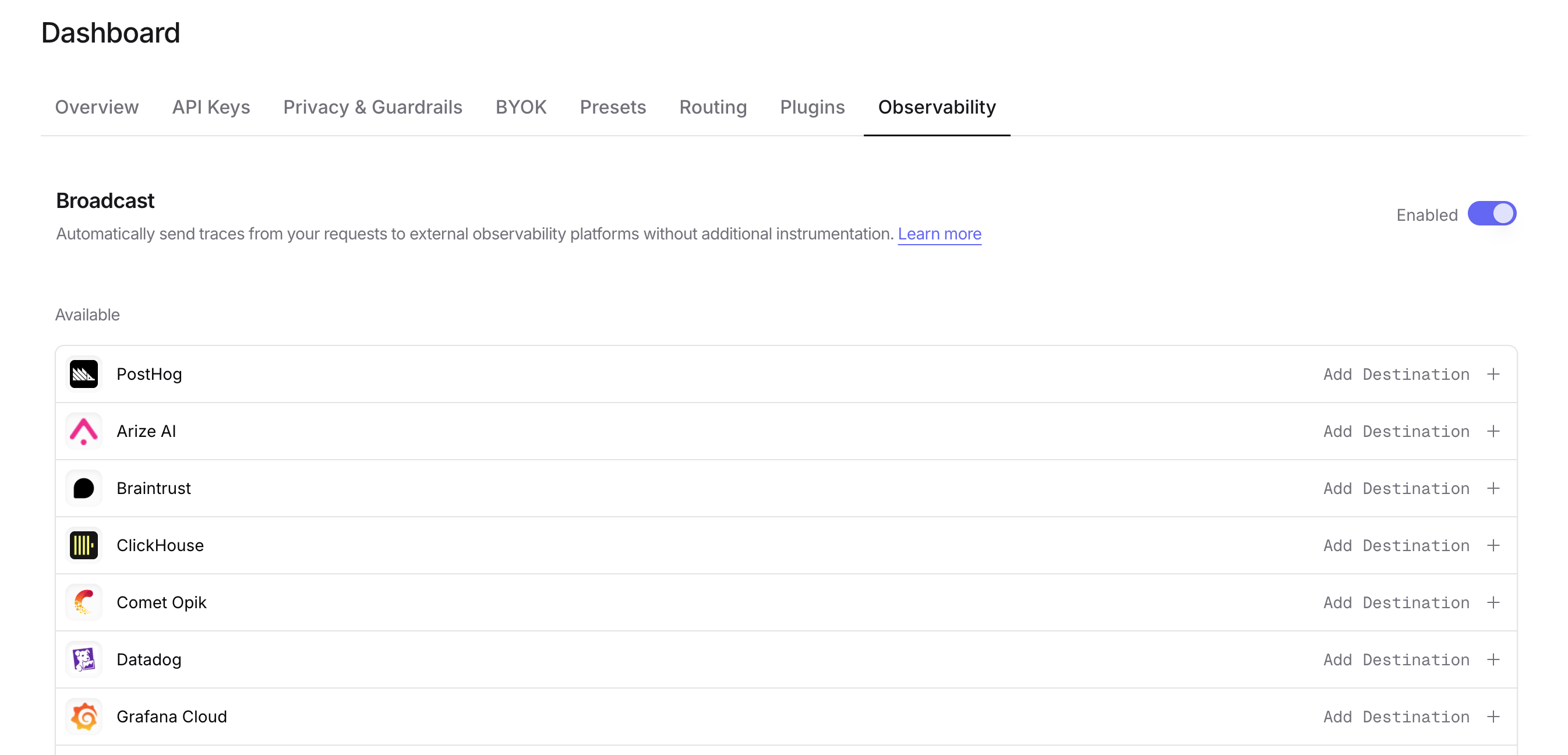
Go to [Settings > Observability](https://openrouter.ai/settings/observability) and toggle **Enable Broadcast**.
 ## Step 3: Configure S3
Click the edit icon next to **S3 / S3-Compatible** and enter:
* **Bucket Name**: Your S3 bucket name (e.g., `my-traces-bucket`)
* **Region** (optional): AWS region (auto-detected for AWS, required for some S3-compatible services)
* **Custom Endpoint** (optional): For S3-compatible services like R2, enter the endpoint URL (e.g., `https://your-account-id.r2.cloudflarestorage.com`)
* **Access Key Id**: Your access key ID
* **Secret Access Key**: Your secret access key
* **Session Token** (optional): For temporary credentials
* **Path Template** (optional): Customize the object path. Default is `openrouter-traces/{date}`. Available variables: `{prefix}`, `{date}`, `{year}`, `{month}`, `{day}`, `{apiKeyName}`
## Step 4: Test and save
Click **Test Connection** to verify the setup. The configuration only saves if the test passes.
## Step 5: Send a test trace
Make an API request through OpenRouter and check your S3 bucket for the trace file. Each trace is saved as a separate JSON file with the format `{traceId}-{timestamp}.json`.
## Path template examples
Customize how traces are organized in your bucket:
* `openrouter-traces/{date}` - Default, organizes by date (e.g., `openrouter-traces/2024-01-15/abc123-1705312800.json`)
* `traces/{year}/{month}/{day}` - Hierarchical date structure
* `{apiKeyName}/{date}` - Organize by API key name, then date
* `production/llm-traces/{date}` - Custom prefix for environment separation
For time-based batching (e.g., hourly or daily aggregated files), consider using AWS Kinesis Firehose instead, which buffers records and writes batched files to S3.
## Custom Metadata
Custom metadata from the `trace` field is included in the JSON trace file stored in your S3 bucket. The metadata is available in the `metadata` field of each observation within the trace.
### Supported Metadata Keys
| Key | S3 JSON Mapping | Description |
| ----------------- | -------------------------- | --------------------------- |
| `trace_id` | `id` (trace level) | Custom trace identifier |
| `trace_name` | `name` (trace level) | Custom name for the trace |
| `span_name` | `name` (observation level) | Name for intermediate spans |
| `generation_name` | `name` (observation level) | Name for the LLM generation |
### Example
```json lines theme={null}
{
"model": "openai/gpt-4o",
"messages": [{ "role": "user", "content": "Analyze this document..." }],
"user": "user_12345",
"session_id": "session_abc",
"trace": {
"trace_name": "Document Analysis",
"generation_name": "Extract Key Points",
"document_type": "contract",
"batch_id": "batch_456"
}
}
```
### Accessing Metadata in S3
Each trace file is a JSON object. Custom metadata keys from `trace` are stored in the `metadata` field and can be queried using tools like Amazon Athena, Presto, or any JSON-aware query engine:
```sql lines theme={null}
-- Example Athena query on S3 trace files
SELECT
json_extract_scalar(metadata, '$.document_type') as doc_type,
json_extract_scalar(metadata, '$.batch_id') as batch_id
FROM openrouter_traces
WHERE json_extract_scalar(metadata, '$.document_type') = 'contract';
```
### Additional Context
* The `user` field maps to `userId` in the trace JSON
* The `session_id` field maps to `sessionId` in the trace JSON
* Trace files include full input/output messages, token counts, costs, and timing data alongside your custom metadata
## Privacy Mode
When [Privacy Mode](/guides/features/broadcast#privacy-mode) is enabled for this destination, prompt and completion content is excluded from traces. All other trace data — token usage, costs, timing, model information, and custom metadata — is still sent normally. See [Privacy Mode](/guides/features/broadcast#privacy-mode) for details.
## Step 3: Configure S3
Click the edit icon next to **S3 / S3-Compatible** and enter:
* **Bucket Name**: Your S3 bucket name (e.g., `my-traces-bucket`)
* **Region** (optional): AWS region (auto-detected for AWS, required for some S3-compatible services)
* **Custom Endpoint** (optional): For S3-compatible services like R2, enter the endpoint URL (e.g., `https://your-account-id.r2.cloudflarestorage.com`)
* **Access Key Id**: Your access key ID
* **Secret Access Key**: Your secret access key
* **Session Token** (optional): For temporary credentials
* **Path Template** (optional): Customize the object path. Default is `openrouter-traces/{date}`. Available variables: `{prefix}`, `{date}`, `{year}`, `{month}`, `{day}`, `{apiKeyName}`
## Step 4: Test and save
Click **Test Connection** to verify the setup. The configuration only saves if the test passes.
## Step 5: Send a test trace
Make an API request through OpenRouter and check your S3 bucket for the trace file. Each trace is saved as a separate JSON file with the format `{traceId}-{timestamp}.json`.
## Path template examples
Customize how traces are organized in your bucket:
* `openrouter-traces/{date}` - Default, organizes by date (e.g., `openrouter-traces/2024-01-15/abc123-1705312800.json`)
* `traces/{year}/{month}/{day}` - Hierarchical date structure
* `{apiKeyName}/{date}` - Organize by API key name, then date
* `production/llm-traces/{date}` - Custom prefix for environment separation
For time-based batching (e.g., hourly or daily aggregated files), consider using AWS Kinesis Firehose instead, which buffers records and writes batched files to S3.
## Custom Metadata
Custom metadata from the `trace` field is included in the JSON trace file stored in your S3 bucket. The metadata is available in the `metadata` field of each observation within the trace.
### Supported Metadata Keys
| Key | S3 JSON Mapping | Description |
| ----------------- | -------------------------- | --------------------------- |
| `trace_id` | `id` (trace level) | Custom trace identifier |
| `trace_name` | `name` (trace level) | Custom name for the trace |
| `span_name` | `name` (observation level) | Name for intermediate spans |
| `generation_name` | `name` (observation level) | Name for the LLM generation |
### Example
```json lines theme={null}
{
"model": "openai/gpt-4o",
"messages": [{ "role": "user", "content": "Analyze this document..." }],
"user": "user_12345",
"session_id": "session_abc",
"trace": {
"trace_name": "Document Analysis",
"generation_name": "Extract Key Points",
"document_type": "contract",
"batch_id": "batch_456"
}
}
```
### Accessing Metadata in S3
Each trace file is a JSON object. Custom metadata keys from `trace` are stored in the `metadata` field and can be queried using tools like Amazon Athena, Presto, or any JSON-aware query engine:
```sql lines theme={null}
-- Example Athena query on S3 trace files
SELECT
json_extract_scalar(metadata, '$.document_type') as doc_type,
json_extract_scalar(metadata, '$.batch_id') as batch_id
FROM openrouter_traces
WHERE json_extract_scalar(metadata, '$.document_type') = 'contract';
```
### Additional Context
* The `user` field maps to `userId` in the trace JSON
* The `session_id` field maps to `sessionId` in the trace JSON
* Trace files include full input/output messages, token counts, costs, and timing data alongside your custom metadata
## Privacy Mode
When [Privacy Mode](/guides/features/broadcast#privacy-mode) is enabled for this destination, prompt and completion content is excluded from traces. All other trace data — token usage, costs, timing, model information, and custom metadata — is still sent normally. See [Privacy Mode](/guides/features/broadcast#privacy-mode) for details.