> ## Documentation Index
> Fetch the complete documentation index at: https://opentouter.ai/docs/llms.txt
> Use this file to discover all available pages before exploring further.
# Ramp
> Send traces to Ramp
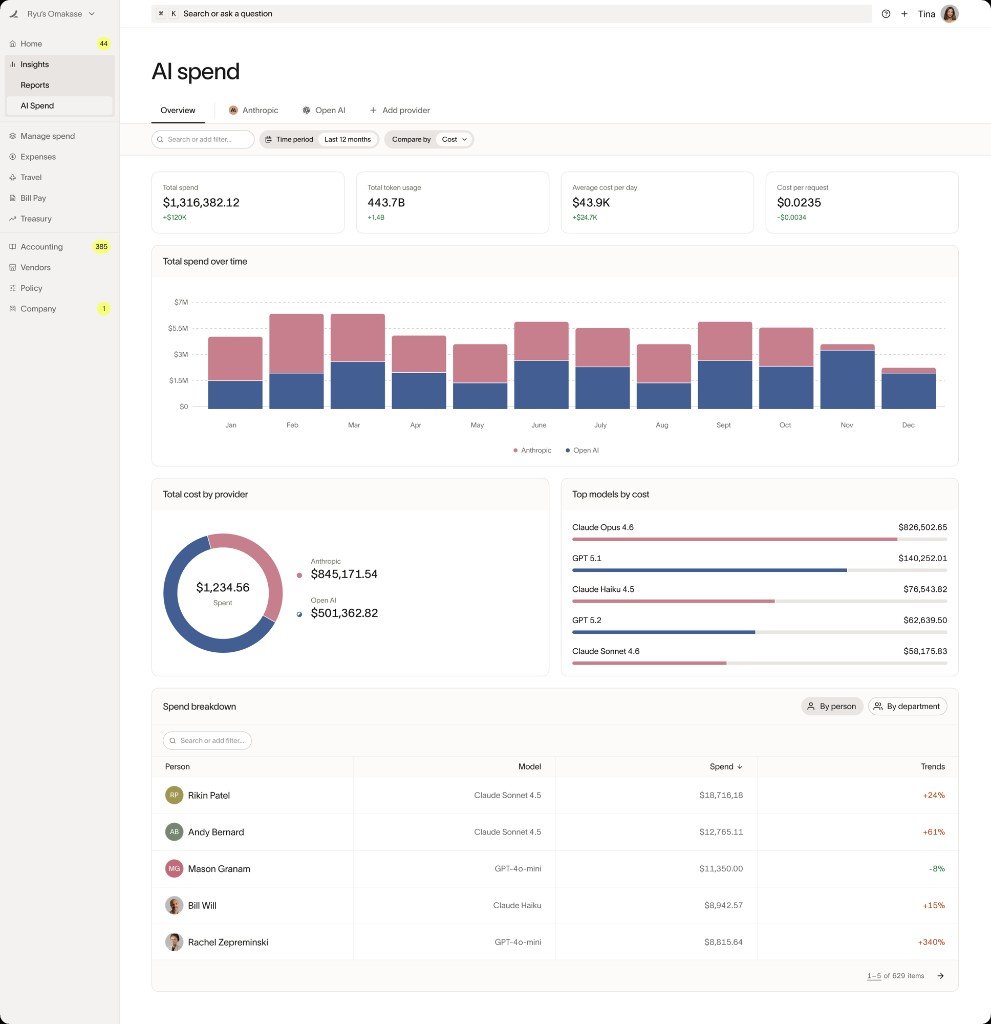
[Ramp](https://ramp.com) is a finance automation platform that helps businesses manage expenses, track spending, and optimize costs. With Ramp's AI usage tracking, you can monitor and control your organization's LLM spending through OpenRouter.
## Step 1: Get your Ramp API key
In Ramp, navigate to your integration settings and generate an API key:
1. Log in to your Ramp account
2. Go to **Settings > Integrations** and search for "OpenRouter"
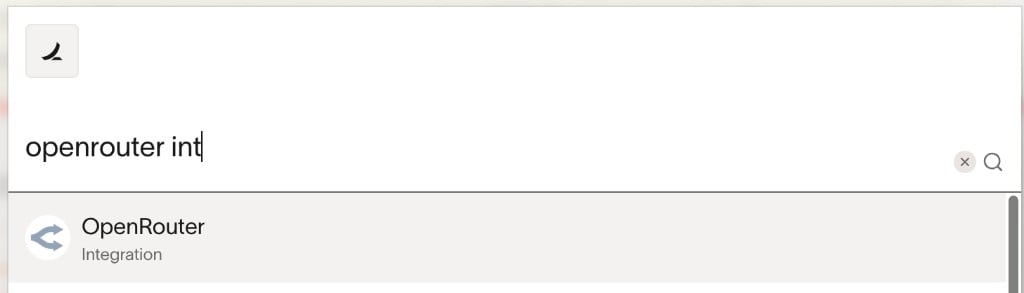 3. Click the **OpenRouter** integration to view the details, then click **Connect**
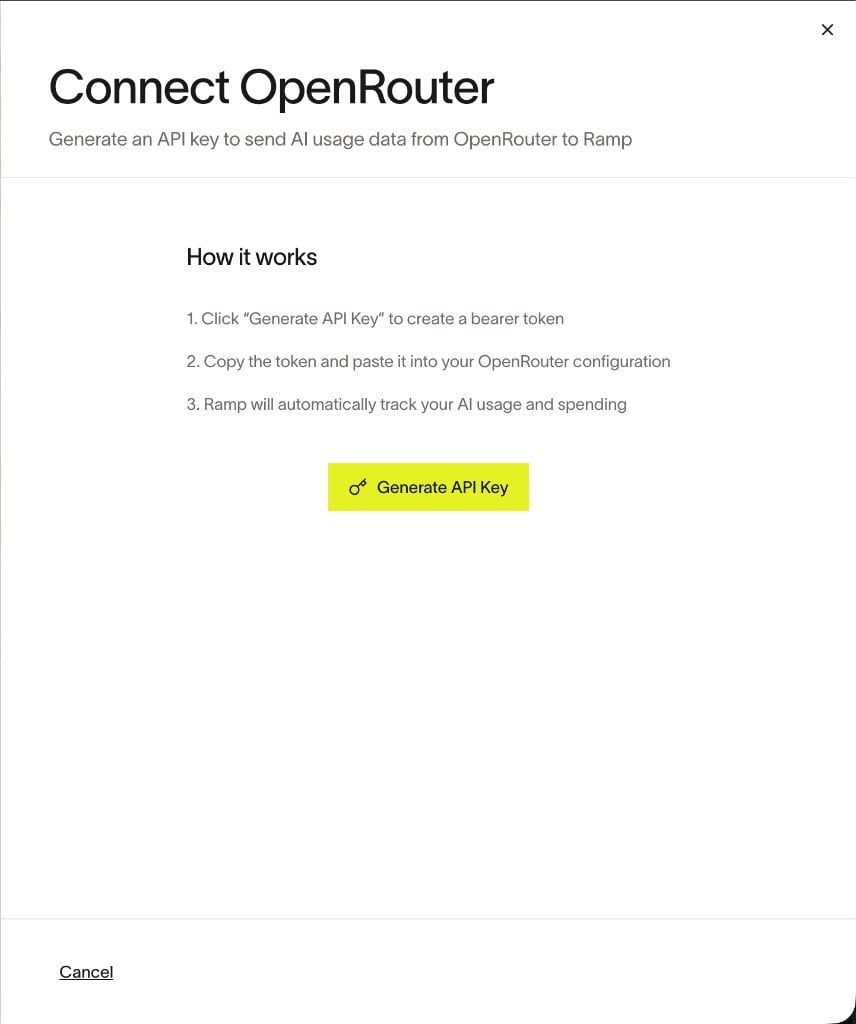 4. Click **Generate API Key** and copy the token
 ## Step 2: Enable Broadcast in OpenRouter
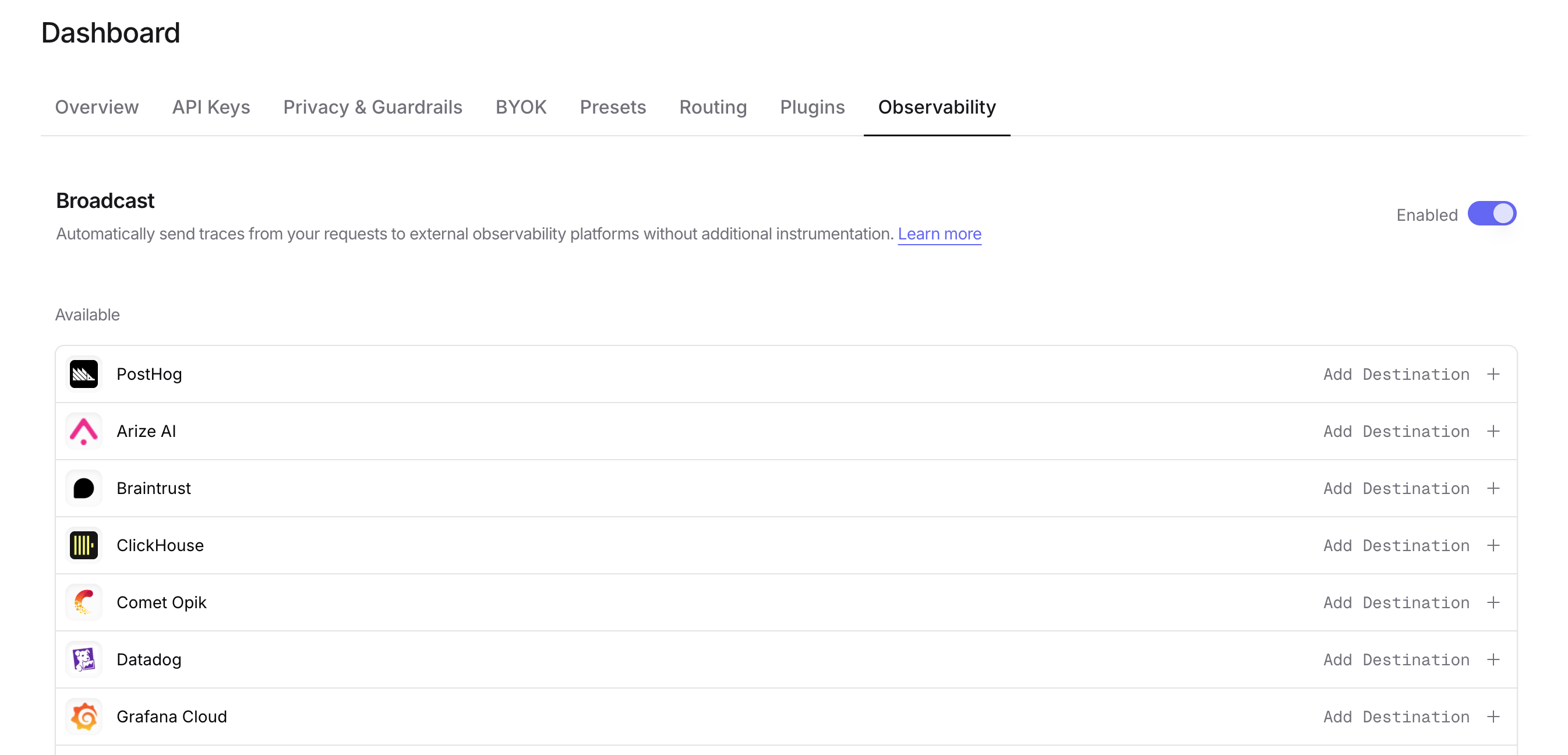
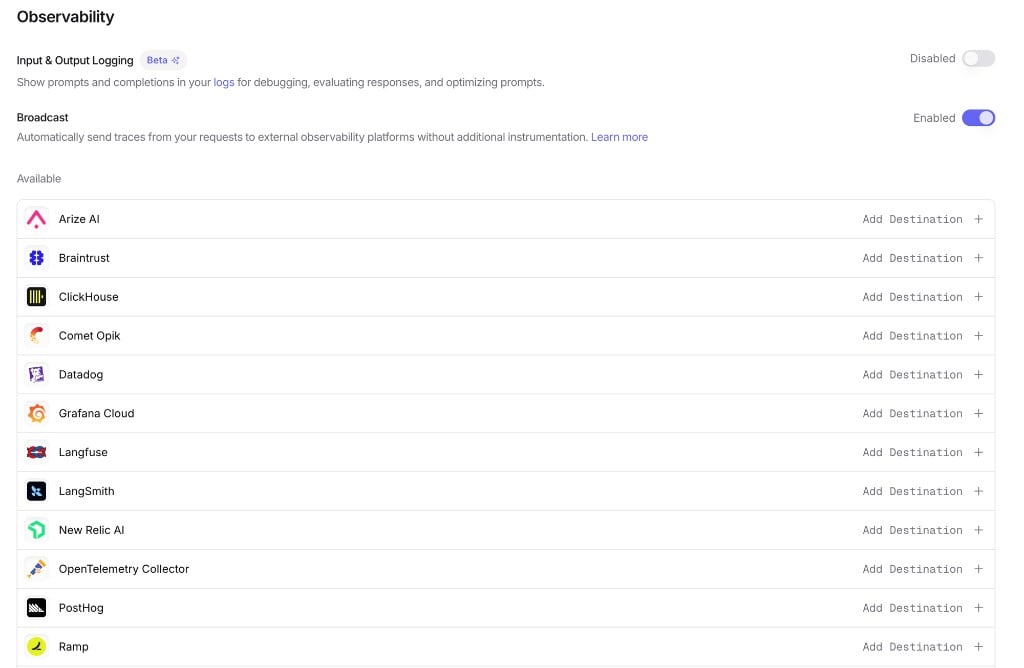
Go to [Settings > Observability](https://openrouter.ai/settings/observability) and toggle **Enable Broadcast**.
## Step 2: Enable Broadcast in OpenRouter
Go to [Settings > Observability](https://openrouter.ai/settings/observability) and toggle **Enable Broadcast**.
 ## Step 3: Configure Ramp
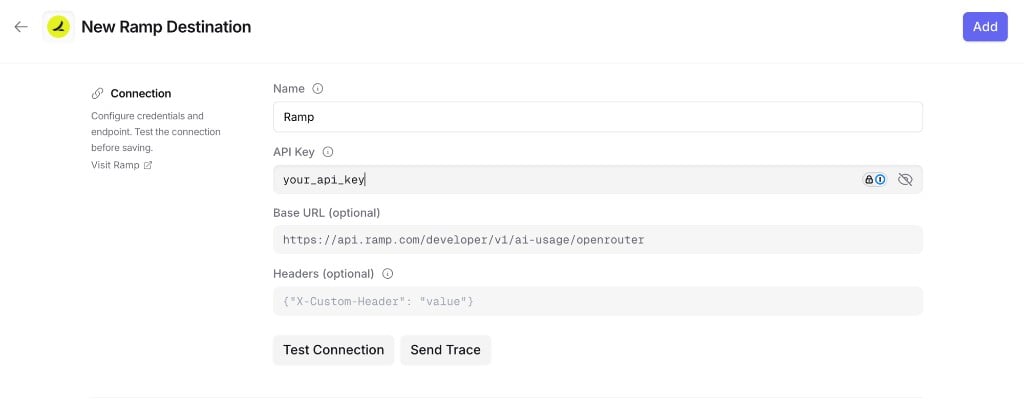
Click the edit icon next to **Ramp** and enter:
* **API Key**: Your Ramp API key
* **Base URL** (optional): Default is `https://api.ramp.com/developer/v1/ai-usage/openrouter`. Only change if directed by Ramp
* **Headers** (optional): Custom HTTP headers as a JSON object to include in requests to Ramp
## Step 3: Configure Ramp
Click the edit icon next to **Ramp** and enter:
* **API Key**: Your Ramp API key
* **Base URL** (optional): Default is `https://api.ramp.com/developer/v1/ai-usage/openrouter`. Only change if directed by Ramp
* **Headers** (optional): Custom HTTP headers as a JSON object to include in requests to Ramp
 ## Step 4: Test and save
Click **Test Connection** to verify the setup. The configuration only saves if the test passes.
## Step 5: Send a test trace
Make an API request through OpenRouter and verify that the AI usage data appears in your Ramp dashboard.
## Step 4: Test and save
Click **Test Connection** to verify the setup. The configuration only saves if the test passes.
## Step 5: Send a test trace
Make an API request through OpenRouter and verify that the AI usage data appears in your Ramp dashboard.
 ## Trace Data
Ramp receives traces via the OpenTelemetry Protocol (OTLP). Each trace includes:
* **Token usage**: Prompt tokens, completion tokens, and total tokens consumed
* **Cost information**: The total cost of the request
* **Timing**: Request start time, end time, and latency metrics
* **Model information**: The model slug and provider name used for the request
* **Request and response content**: The input messages and model output (unless [Privacy Mode](#privacy-mode) is enabled)
## Custom Metadata
Custom metadata from the `trace` field is sent as span attributes in the OTLP payload.
### Supported Metadata Keys
| Key | OTLP Mapping | Description |
| ----------------- | -------------- | ------------------------------------------------ |
| `trace_id` | Trace ID | Group multiple requests into a single trace |
| `trace_name` | Span Name | Custom name for the root span |
| `span_name` | Span Name | Name for intermediate spans in the hierarchy |
| `generation_name` | Span Name | Name for the LLM generation span |
| `parent_span_id` | Parent Span ID | Link to an existing span in your trace hierarchy |
### Example
```json lines theme={null}
{
"model": "openai/gpt-4o",
"messages": [{ "role": "user", "content": "Analyze this expense report..." }],
"user": "user_12345",
"session_id": "session_abc",
"trace": {
"trace_id": "expense_analysis_001",
"trace_name": "Expense Processing Pipeline",
"generation_name": "Analyze Report",
"department": "finance",
"cost_center": "CC-1234"
}
}
```
### Additional Context
* The `user` field maps to `user.id` in span attributes
* The `session_id` field maps to `session.id` in span attributes
* Custom metadata keys from `trace` are included as span attributes under the `trace.metadata.*` namespace
* Standard GenAI semantic conventions (`gen_ai.*`) are used for model, token usage, and cost attributes
## Privacy Mode
When [Privacy Mode](/guides/features/broadcast#privacy-mode) is enabled for this destination, prompt and completion content is excluded from traces. All other trace data — token usage, costs, timing, model information, and custom metadata — is still sent normally. See [Privacy Mode](/guides/features/broadcast#privacy-mode) for details.
## Trace Data
Ramp receives traces via the OpenTelemetry Protocol (OTLP). Each trace includes:
* **Token usage**: Prompt tokens, completion tokens, and total tokens consumed
* **Cost information**: The total cost of the request
* **Timing**: Request start time, end time, and latency metrics
* **Model information**: The model slug and provider name used for the request
* **Request and response content**: The input messages and model output (unless [Privacy Mode](#privacy-mode) is enabled)
## Custom Metadata
Custom metadata from the `trace` field is sent as span attributes in the OTLP payload.
### Supported Metadata Keys
| Key | OTLP Mapping | Description |
| ----------------- | -------------- | ------------------------------------------------ |
| `trace_id` | Trace ID | Group multiple requests into a single trace |
| `trace_name` | Span Name | Custom name for the root span |
| `span_name` | Span Name | Name for intermediate spans in the hierarchy |
| `generation_name` | Span Name | Name for the LLM generation span |
| `parent_span_id` | Parent Span ID | Link to an existing span in your trace hierarchy |
### Example
```json lines theme={null}
{
"model": "openai/gpt-4o",
"messages": [{ "role": "user", "content": "Analyze this expense report..." }],
"user": "user_12345",
"session_id": "session_abc",
"trace": {
"trace_id": "expense_analysis_001",
"trace_name": "Expense Processing Pipeline",
"generation_name": "Analyze Report",
"department": "finance",
"cost_center": "CC-1234"
}
}
```
### Additional Context
* The `user` field maps to `user.id` in span attributes
* The `session_id` field maps to `session.id` in span attributes
* Custom metadata keys from `trace` are included as span attributes under the `trace.metadata.*` namespace
* Standard GenAI semantic conventions (`gen_ai.*`) are used for model, token usage, and cost attributes
## Privacy Mode
When [Privacy Mode](/guides/features/broadcast#privacy-mode) is enabled for this destination, prompt and completion content is excluded from traces. All other trace data — token usage, costs, timing, model information, and custom metadata — is still sent normally. See [Privacy Mode](/guides/features/broadcast#privacy-mode) for details.